How to make an accessible meeting agenda in Word or Google Docs
Last updated 1 October 2026
An agenda has three jobs: tell people when and where, tell them what will happen, and help them find the item they came for. Here’s how to build one that does those jobs for everyone, including people who use a screen reader, enlarge the text or read on a phone.
We’ll use an agenda for the Town of Alder Bend, a made-up town. It’s the filled-in sample from our meeting agenda & minutes kit.
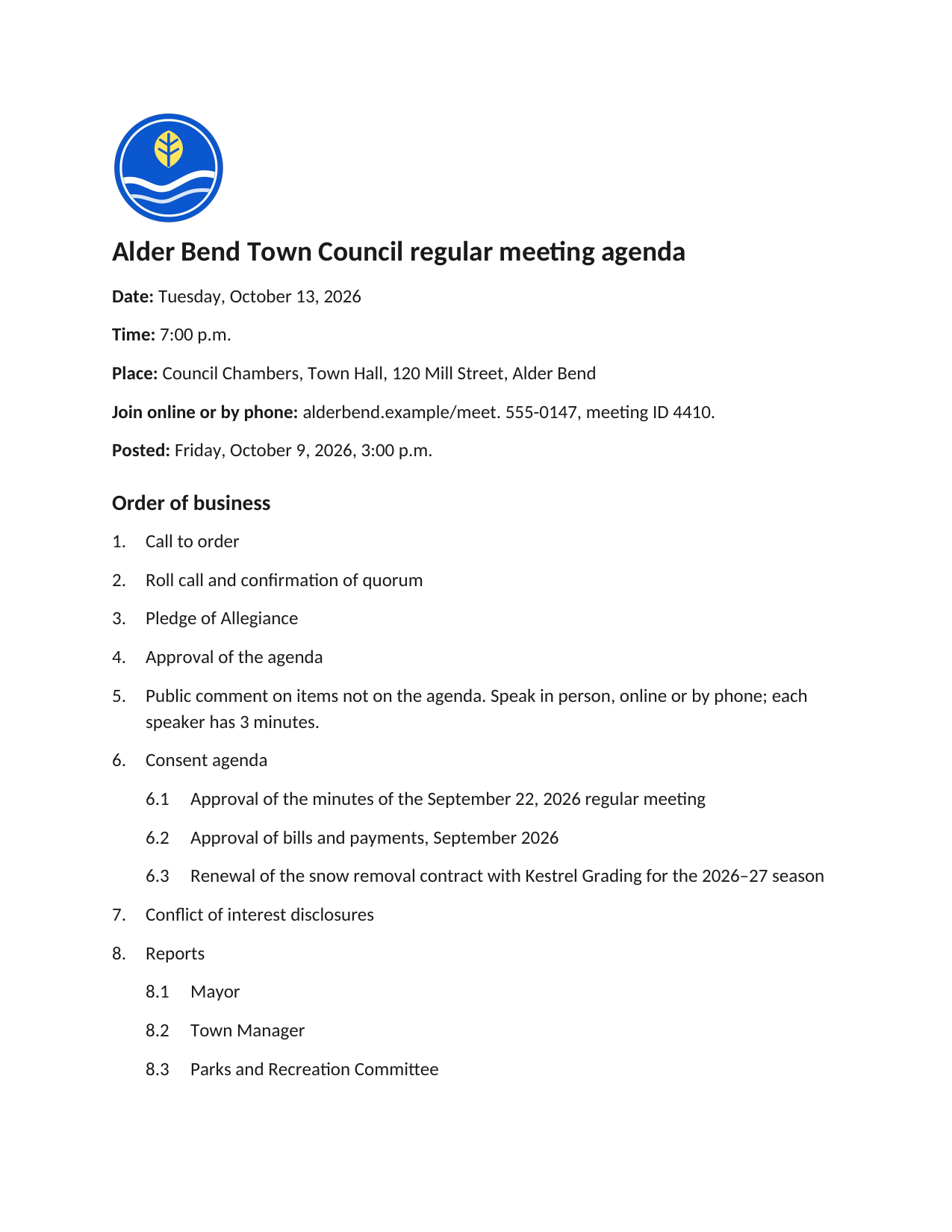
The Alder Bend Town Council agenda. Select it to see it full size.
The page shows: The town's round logo, then the heading “Alder Bend Town Council regular meeting agenda”, the date, time, place and how to join, and a numbered order of business with sub-items for the consent agenda and reports.
1. Make the title a real heading
Type the title, for example “Alder Bend Town Council regular meeting agenda”, and apply Heading 1.
- Word: Home tab, Styles, Heading 1.
- Google Docs: the “Normal text” menu on the toolbar, then Heading 1.
Making the text big and bold doesn’t do the same job. A screen reader only knows a line is a heading if it has a heading style. Use Heading 1 rather than the Title style, as most accessibility guides recommend, so the title is the first heading in the document.
2. Put the meeting details in the text
Right under the title, one line each:
- Date: Tuesday, October 13, 2026
- Time: 7:00 p.m.
- Place: Council Chambers, Town Hall, 120 Mill Street, Alder Bend
- Join online or by phone: the link, the phone number and the meeting ID
- Posted: when this agenda was posted
Keep these in the body of the document, not in a header, a footer, a text box or a picture. Screen readers often skip headers and footers, and nobody can copy a phone number out of a picture.
The bold labels help people scanning the page. A screen reader reads the label and the details together, which works just as well.
3. Use a real numbered list for the order of business
Add a heading, “Order of business”, and apply Heading 2. Then make the agenda items a numbered list:
- Word: Home tab, Numbering (or Multilevel List for sub-items).
- Google Docs: the numbered list button on the toolbar.
Press Enter for a new item, Tab to make it a sub-item, and Shift+Tab to move it back out. Don’t type the numbers yourself. A typed “6.1” is just text. A real list tells a screen reader user it’s item 1 of 3 under item 6, and the numbers fix themselves when you add or move an item.
Say what will happen, not just the topic. “Library hours: the council will consider opening the library on Sunday afternoons from January” tells people whether to come. “Library update” doesn’t.
4. Say how to ask for an accommodation
Add a heading, “Accessibility and accommodations” (Heading 2), and a sentence like this one from the Alder Bend agenda:
To request a disability-related accommodation for this meeting, such as a sign language interpreter, captioning or materials in another format, contact the Town Clerk at 555-0142, clerk@alderbend.example or your relay service at least 2 business days before the meeting.
Name a real person or office, more than one way to reach them, and a deadline. Some states require a statement like this on every agenda. Where it isn’t required, it’s still how people know they can ask.
If your community uses other languages, add a “Language assistance” section the same way.
5. Check the structure
- Word: View tab, Navigation Pane (on Windows, Ctrl+F also opens it). You should see the title, then each Heading 2 under it.
- Google Docs: View, Show outline.
If a heading is missing, its style is wrong. If something shows up that isn’t a heading, it’s been given a heading style just to make it big.
Then, in Word, run the checker: Review, Check Accessibility. Fix what it finds and run it again. Google Docs has no built-in checker, so go through our document accessibility checklist by hand.
6. Share the document, or a tagged PDF
Post the Word file, or a PDF made from it with tags:
- Word on Windows: File, Save As, PDF, Options, then tick “Document structure tags for accessibility”.
- Word on a Mac: File, Save As, PDF, then “Best for electronic distribution and accessibility”. This sends the file to a Microsoft online service to make the PDF.
- Google Docs: File, Download, PDF.
Never use Print to make the PDF, and never print and scan it. Both throw away the headings and the list, and a scanned page is a picture a screen reader can’t read.
If you combine the agenda with attachments from other people into one packet, check each attachment too. One scanned attachment makes the whole packet hard to use.
Check your local rules
Open-meetings laws differ by state. How far ahead you must post, how specific each item must be and where public comment goes depend on your state and your own bylaws. Check with your attorney, clerk’s association or state municipal league. This guide isn’t legal advice.
Start from a template
The Meeting agenda & minutes kit has this agenda ready to fill in, plus minutes, a meeting notice and an agenda item summary, all built this way, free to download. There’s also a free accessible document quick checklist.