Free dyslexia resources
Last updated 30 October 2026
A guide and two Word templates for making everyday documents easier to read: for people who write for dyslexic readers, and for dyslexic readers who want documents they can change. They’re free, and they’ll stay free. No signup, no email address, nothing to buy.
No single format works for every dyslexic reader, so each template is built to be easy to adapt: real headings and lists, and the font, size, spacing and background set in one place. These are for everyday information like event details and how-to steps. They aren’t a test for dyslexia, a treatment, or a way to teach reading.
The guide
Making everyday documents easier to read
What makes a document easier to read, a before-and-after example, a short checklist, and what the research on special dyslexia fonts actually found. On this website, with sources.
Activity information sheet
For an event, class, club or community activity. It separates what’s happening, what the reader needs to do and the deadline, when and where, what to bring, and who to ask. Each one has a heading or a bold label, so nothing depends on color or icons.
Optional parts: the “Getting there” and “Cost” lines and the “What to bring” section. Delete any you don’t need, along with its heading if it has one; nothing else moves out of place. The blank fits on one page. With real details, as in the example, it can run onto a second.
- Download the blank activity information sheet (Word, 1 page, 10 KB)
- Download the filled-in example (Word, 2 pages, 10 KB)
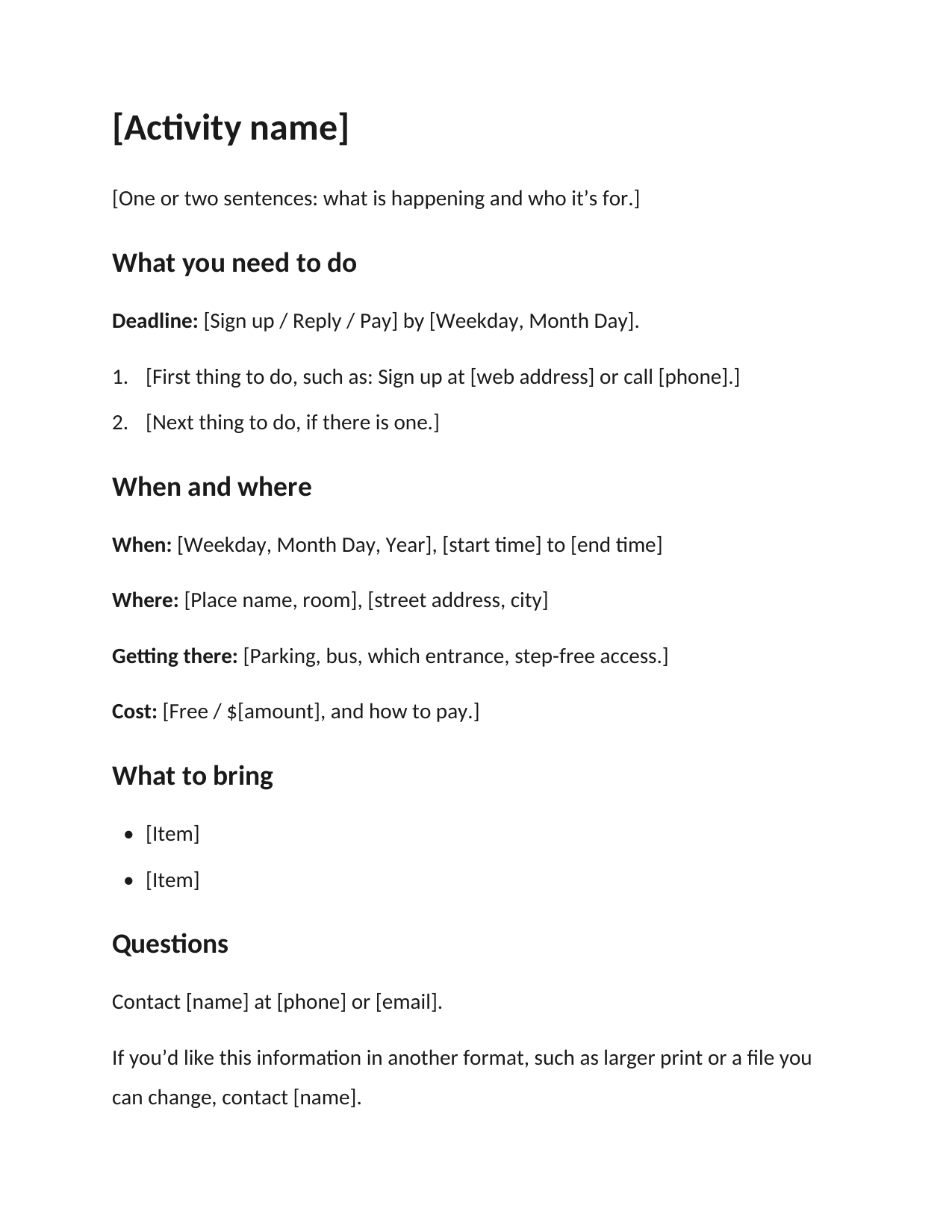
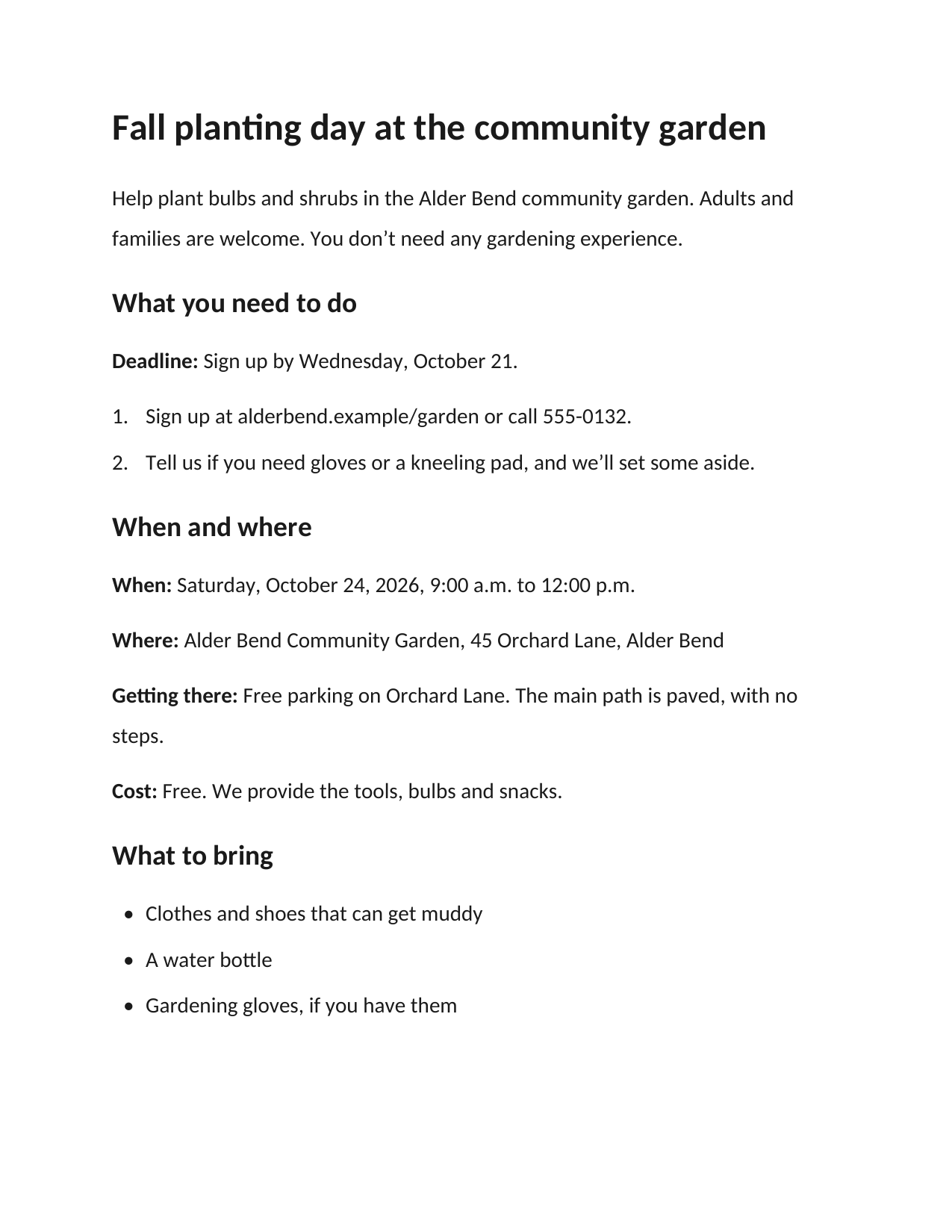
The blank activity information sheet, and the example. Select either page to see it full size.
The pages show: The blank template: A heading “[Activity name]” and a one-line description, then the sections What you need to do (a deadline line and two numbered steps), When and where (When, Where, Getting there and Cost lines), What to bring (a bulleted list), and Questions. The example: The heading “Fall planting day at the community garden”, a short description, the deadline “Sign up by Wednesday, October 21” with two numbered steps, the date, time, place, parking and cost, and a short What to bring list. Page 2 has who to contact.
Step-by-step instructions
For an everyday task: a goal, what to have ready, numbered steps, a note where one is needed, how to tell it worked, and where to get help.
Steps: type each step into the numbered list. Press Enter for the next step. The note is a paragraph set in from the margin, with a line on its left: to add another, copy it and paste it after the step it’s about. To remove one, delete the whole paragraph; the numbering carries on.
Optional parts: the “Time needed” line, the “Before you start” section and the note. The example is a made-up library’s room booking: keep your own instructions to ordinary, low-risk tasks, and use the right official format for anything medical, legal or safety-related.
- Download the blank step-by-step instructions (Word, 1 page, 10 KB)
- Download the filled-in example (Word, 1 page, 10 KB)
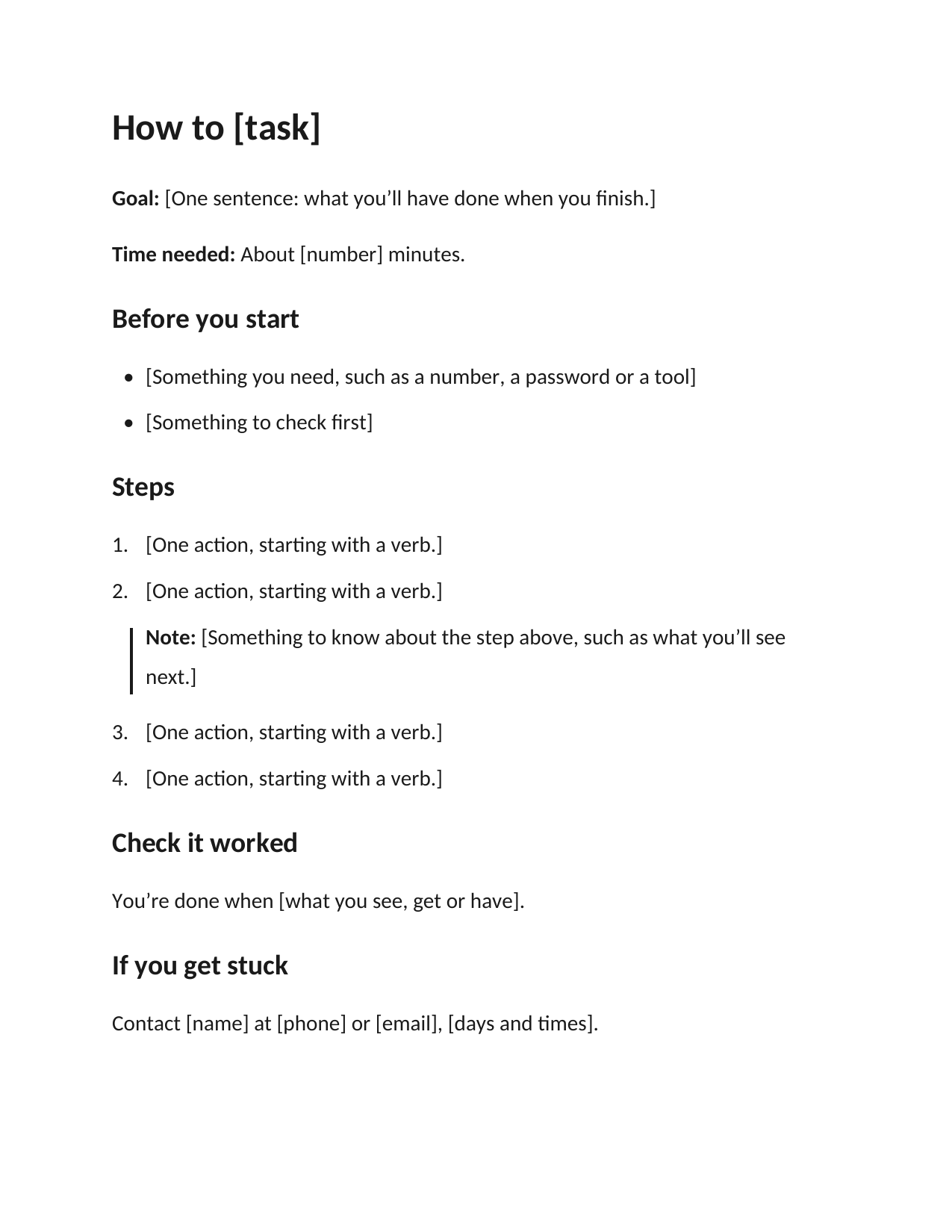
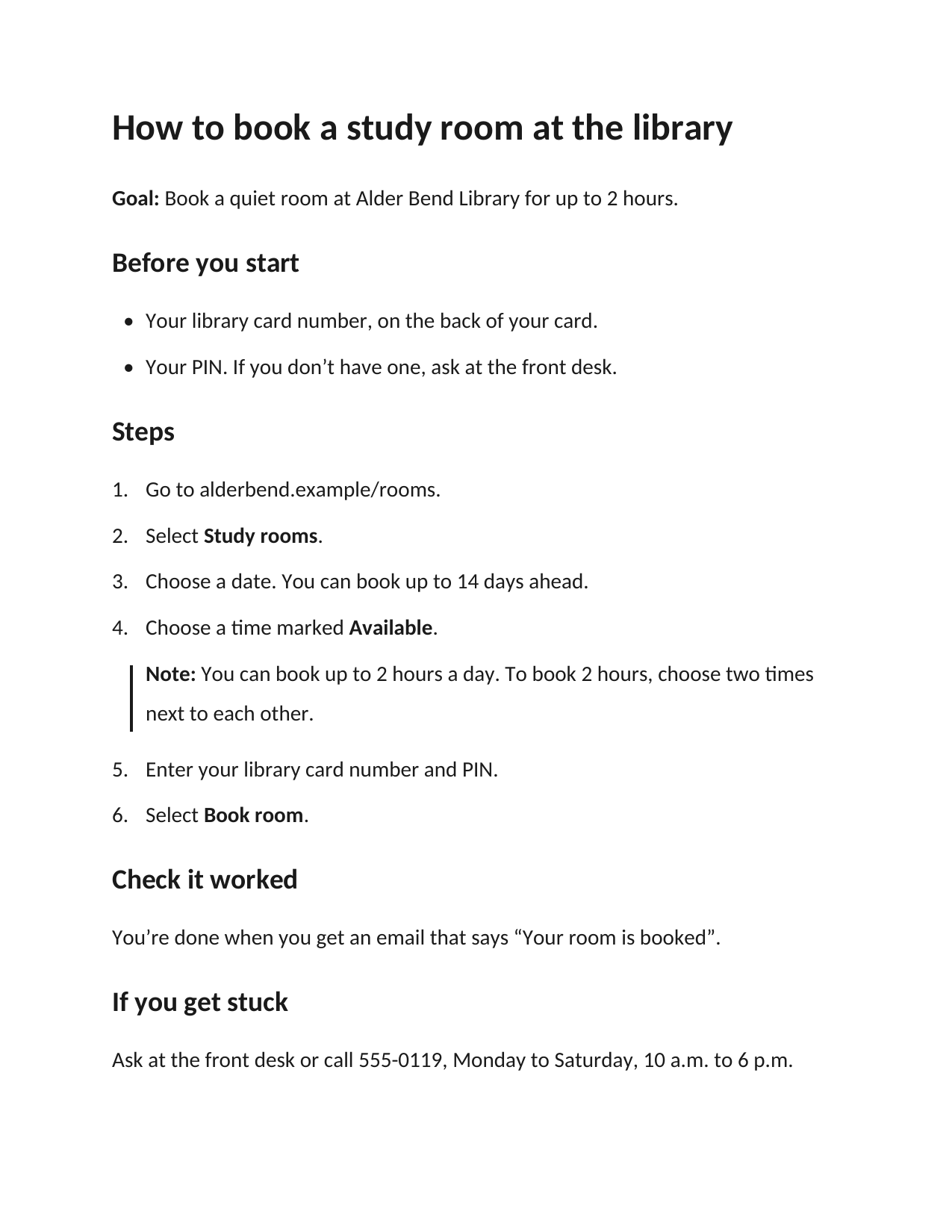
The blank step-by-step instructions, and the example. Select either page to see it full size.
The pages show: The blank template: A heading “How to [task]”, Goal and Time needed lines, then the sections Before you start (a bulleted list), Steps (four numbered steps with a note set in from the margin after step 2), Check it worked, and If you get stuck. The example: The heading “How to book a study room at the library”, the goal, what to have ready, six numbered steps with a note after step 4 about the 2-hour limit, how to tell it worked, and where to get help.
Change the font, size, spacing and background
The templates use Calibri at 14 point, 1.5 line spacing, left-aligned text and a white page. That’s a starting point. Change it for your readers, or for yourself. Change the styles, not the text by hand: then every heading and paragraph follows, and the structure stays intact.
In Word for Windows or Mac
- Font and size: on the Home tab, in Styles, right-click Normal and choose Modify. Pick the font and size. Do the same for Heading 1 and Heading 2 if you want them to match.
- Line and paragraph spacing: in the same Modify window, choose Format, then Paragraph, and set Line spacing and the space After.
- Background: on the Design tab, choose Page Color. In Word for the web, it’s on the Layout tab. Word doesn’t print page color unless you turn it on, so for paper copies, tinted paper may be simpler.
In Google Docs
- Font and size: select a paragraph of body text, change its font and size, then choose Format, Paragraph styles, Normal text, Update ‘Normal text’ to match. Do the same for headings.
- Line spacing: select all (Ctrl+A, or Command+A on a Mac), then Format, Line & paragraph spacing, Custom spacing.
- Background: File, Page setup, Page color.
Keep it readable when you change it
- Keep strong contrast between text and background. Check your colors with WebAIM’s free contrast checker: body text needs at least 4.5 to 1.
- Use a font that’s already on the computers your readers use. You don’t need to buy or install a special font.
- Keep the headings as headings and the lists as lists. Don’t add text boxes or put information in a picture.
Using Google Docs
Upload the Word file to Google Drive and open it with Google Docs. The headings, numbered steps and note come through as they are in Word. Google Docs doesn’t keep Word’s “Note” style by name: the note keeps its look, but to add another, copy the existing one.
Listening instead of reading
Everything in the templates is real text, so read-aloud tools can read it. In Word for Windows or Mac, try Review, Read Aloud. In Word for the web, try View, Immersive Reader. Phones and computers also have their own read-aloud tools.
Using them
Free to use and change, for yourself, your family, your class or your organization. The examples are made up: the Town of Alder Bend isn’t a real place. Questions or problems: support.
Free to use, share and adapt under the Creative Commons Attribution 4.0 International license (CC BY 4.0). Documents you make from these templates are yours: they don’t need a credit line.
If you share the template files themselves, credit them like this:
“Easier-to-read templates” by Brian Stoffer, AccessiblePress (accessiblepress.com), licensed under CC BY 4.0